Template: Labels filled out from top to bottom
This section explains how to set up a template to generate output pages with multiple labels in the sequence displayed below (top to bottom):
(If you prefer to fill out the labels from left to right, please refer to the section, Template: Labels filled out from left to right)
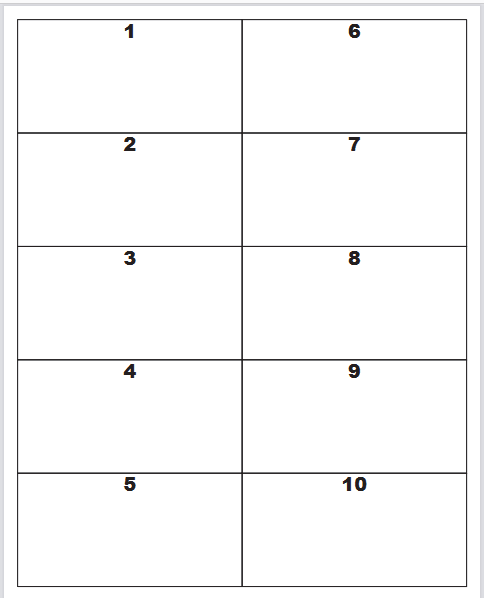
To set up such a template, you first need to determine how many columns of labels you want in the horizontal direction. In the example above, we have chosen 2 columns.
The first step is to insert a container in the page element where you set the number of columns:
The size of this container should be dynamic, allowing it to utilize the entire page.
In this example we use a repeat to print out the values from 1 to 20, but you would normally use the repeat to iterate across each of the detail lines in the input file:
Inside the repeat, another container is added. This represents the individual label that will be inserted.
Please note, that both labels are placed with a dynamic position. The size of the label container is set to a fixed size in this case:
The width of the label is set to fit a portrait A4 page, with a 6 mm margin on both the left and right sides.
Since an A4 page is 21 cm wide, this leaves 19.8 cm of available space for both columns.