IBM i Call Program
The Advanced, utilities workflow component, IBM i Call Program enables the possibility to call a program on the IBM i (even if InterformNG2 is running on Windows). This workflow component should be used instead of the older alternative, Execute native OS Command.
Prerequisite: You need a connection to the IBM i, which is setup in the global system settings. The program will run as the user, that has been setup for the connection.
The IBM i Call Program component has these parameters:
Version 4.4.0 and later
In total it is possible to define up to 20 input text parameters (each of 128 characters), and the program can return up to 20 return text parameters (each of 255 characters). The additional parameter fields are shown in the optional attributes of the component. Existing workflows that use 10 or fewer parameters are not affected.

Note: the program must be defined with all parameters of the specified lengths. If you use more than 10 input or return parameters, the program on the IBM i must be changed and recompiled to accept them. That is done on the IBM i and is not something InterformNG2 does for you
Before version 4.4.0
Up to 10 input text parameters and up to 10 return text parameters.
The parameters are:
Exit program
The name of the program object on the IBM i, that you want to call.
Exit program library
The library in which the program is stored.
Input text 1... 20
These are the up to 20 input parameters for the program call. The maximum length of each parameter is 128 characters.
The program, that you call should be built like the program source below:
(The program must have the parameter list to match this format i.e. 10 entry parameters, that are each 128 characters followed by 10 return parameters, that are each 255 characters).
PGM PARM(&PARM01 &PARM02 &PARM03 &PARM04 &PARM05 +
&PARM06 &PARM07 &PARM08 &PARM09 &PARM10 +
&EXIT01 &EXIT02 &EXIT03 &EXIT04 &EXIT05 +
&EXIT06 &EXIT07 &EXIT08 &EXIT09 &EXIT10)
DCL VAR(&PARM01) TYPE(*CHAR) LEN(128)
DCL VAR(&PARM02) TYPE(*CHAR) LEN(128)
DCL VAR(&PARM03) TYPE(*CHAR) LEN(128)
DCL VAR(&PARM04) TYPE(*CHAR) LEN(128)
DCL VAR(&PARM05) TYPE(*CHAR) LEN(128)
DCL VAR(&PARM06) TYPE(*CHAR) LEN(128)
DCL VAR(&PARM07) TYPE(*CHAR) LEN(128)
DCL VAR(&PARM08) TYPE(*CHAR) LEN(128)
DCL VAR(&PARM09) TYPE(*CHAR) LEN(128)
DCL VAR(&PARM10) TYPE(*CHAR) LEN(128)
DCL VAR(&EXIT01) TYPE(*CHAR) LEN(255)
DCL VAR(&EXIT02) TYPE(*CHAR) LEN(255)
DCL VAR(&EXIT03) TYPE(*CHAR) LEN(255)
DCL VAR(&EXIT04) TYPE(*CHAR) LEN(255)
&PARM06 &PARM07 &PARM08 &PARM09 &PARM10 +
&EXIT01 &EXIT02 &EXIT03 &EXIT04 &EXIT05 +
&EXIT06 &EXIT07 &EXIT08 &EXIT09 &EXIT10)
DCL VAR(&PARM01) TYPE(*CHAR) LEN(128)
DCL VAR(&PARM02) TYPE(*CHAR) LEN(128)
DCL VAR(&PARM03) TYPE(*CHAR) LEN(128)
DCL VAR(&PARM04) TYPE(*CHAR) LEN(128)
DCL VAR(&PARM05) TYPE(*CHAR) LEN(128)
DCL VAR(&PARM06) TYPE(*CHAR) LEN(128)
DCL VAR(&PARM07) TYPE(*CHAR) LEN(128)
DCL VAR(&PARM08) TYPE(*CHAR) LEN(128)
DCL VAR(&PARM09) TYPE(*CHAR) LEN(128)
DCL VAR(&PARM10) TYPE(*CHAR) LEN(128)
DCL VAR(&EXIT01) TYPE(*CHAR) LEN(255)
DCL VAR(&EXIT02) TYPE(*CHAR) LEN(255)
DCL VAR(&EXIT03) TYPE(*CHAR) LEN(255)
DCL VAR(&EXIT04) TYPE(*CHAR) LEN(255)
DCL VAR(&EXIT05) TYPE(*CHAR) LEN(255)
DCL VAR(&EXIT06) TYPE(*CHAR) LEN(255)
DCL VAR(&EXIT07) TYPE(*CHAR) LEN(255)
DCL VAR(&EXIT08) TYPE(*CHAR) LEN(255)
DCL VAR(&EXIT09) TYPE(*CHAR) LEN(255)
DCL VAR(&EXIT10) TYPE(*CHAR) LEN(255)
CHGVAR VAR(&EXIT01) VALUE('myemail@mydomain.com')
ENDPGM
DCL VAR(&EXIT06) TYPE(*CHAR) LEN(255)
DCL VAR(&EXIT07) TYPE(*CHAR) LEN(255)
DCL VAR(&EXIT08) TYPE(*CHAR) LEN(255)
DCL VAR(&EXIT09) TYPE(*CHAR) LEN(255)
DCL VAR(&EXIT10) TYPE(*CHAR) LEN(255)
CHGVAR VAR(&EXIT01) VALUE('myemail@mydomain.com')
ENDPGM
The program source above always simply return the text 'myemail@mydomain.com' in the first return variable.
After calling the IBM i program the initial payload will be overwritten with an XML structure containing the return variables. This XML structure looks like this:
<output>
<ReturnText01/>
<ReturnText02/>
<ReturnText03/>
<ReturnText04/>
<ReturnText05/>
<ReturnText06/>
<ReturnText07/>
<ReturnText08/>
<ReturnText09/>
<ReturnText10/>
</output>
<ReturnText01/>
<ReturnText02/>
<ReturnText03/>
<ReturnText04/>
<ReturnText05/>
<ReturnText06/>
<ReturnText07/>
<ReturnText08/>
<ReturnText09/>
<ReturnText10/>
</output>
Simple example of how a program can be called
The workflow below calls the program above and saves the result to the file system:
The IBM i Program Call looks like this:
Here the value '1001' is transferred as parameter 1 to the program.
The payload saved to a file and the file looks like this:
Here the value of the ReturnText01 can also be loaded in the workflow with the Xpath expression /output/ReturnText01
It can be helpful to save the initial payload before you call the program. You can do that by e.g. copying the payload to a workflow variable or saving the payload to a named property.
Example: Call an IBM i program to retrieve the email receiver
Below is an example that shows how you can call a program to retrieve the email address to send to and then use when the email is generated.
The workflow looks like this:
Each of the elements are described below:
First the input file is received. In this case we monitor an output queue, but it could also be e.g. a monitored folder or a workflow triggered by a web service call.
In this workflow the sample XML file is the file generated by a previous call to an IBM i program. That makes it easier to extract information from the result of the program call.
Next we save the original payload with this workflow component:
That is necessary as the program call will overwrite the original payload.
Now we can call the IBM i program. It expects the customer number in parameter 1 and it will return the email address in the first return parameter: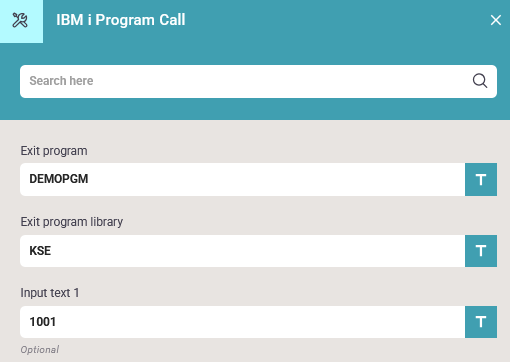
In the example above the text '1001' is fixed, but in a real example the customer number could be extracted from the input file and stated here as an Xpath expression.
After the program call we can extract the email receiver with this expression: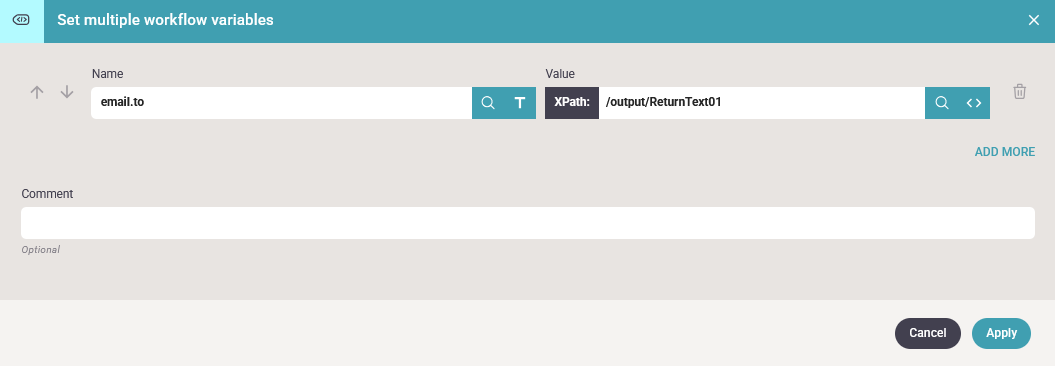
Now we have extracted what we wanted from the program call, so now we can get the original input file back with this component: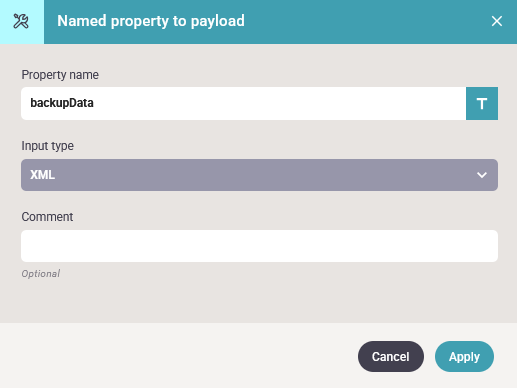
And finally we can send an email to the email address returned in the program call: