Embed element
It is possible to attach extra, embedded files to the output PDF file. You define this with the embed element, which is inserted by pressing this icon in the designer:


In the output PDF file you will see a paperclip (size and position is specified in the embed element). In other outputs the embed element is ignored.
You see the properties of the embed element, when you create a new element, and if you double click on an existing embed element in the element tree.
The properties are:
- Resource URI
The file to embed. If you click this icon:
- then you can select a specific resource from the Library and the URI of that resource will be inserted. - Description
A mouse-over description of the file. - Displayed file name
The name of the file, when it is embedded in the PDF. - Error handling
- Size
The size of the paperclip in the output.
The file to embed
A URI to the file, that you want to embed can be stated as the resource:
If you want to link to a local file, then you can do that with a URL like this:
file:/C:/Users/myuser/Pictures/Myfile.jpgIf there is a space in the path, then you need to replace the spaces with %20. You can do that in this way with an XPath expression:
replace('file:/C:/Users/myuser/Pictures/My File.jpg',' ','%20')smbFile:/Share%20on%20internal%20server/image.JPGIf you want to embed a file from another server while running on the IBM i platform, then you can refer to the file via QNTC like below, but you should use the windows share option above if at all possible:
file:/QNTC/MyServer/Share/file.pdfThe file can be selected in two ways:
- One way is to select it as a fixed constant as shown above. This can be stated, when you see the T on the right as above.
- Another way is to click the T above to switch to expression mode as below. In this mode you can use an Xpath expression to state the URL of the file. You can use the magnifying glass to refer to a path in the sample input XML file or click the <> icon to switch to fixed text mode as above.
If you have bought and configured the Sharepoint integration module you can even embed files from Sharepoint as covered here.
Mouse-over description of the embedded file
It is possible to state a text to be shown in the PDF file, when the receiver of the PDF hovers the mouse over the embed paperclip. You specify that as the description as below:
Displayed file name
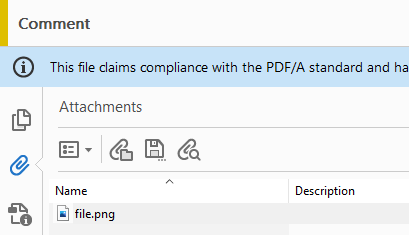
The displayed file name sets the name of the file, when it is embedded in the PDF file. With the settings shown on the top of this section the file name will be file.png as shown below. Like almost any other field this can of course also be set as an XPath expression e.g. to set a dynamic name that reflect the name of the embedded file.
The size of the paperclip
The size of the paperclip shown as the link in the PDF file is defined with the size parameter: